How to Pass Network+ Troubleshooting: Symptom, Layer, Tool, Fix
Network Troubleshooting is the heaviest single domain on the CompTIA Network+ N10-009 exam, weighted at roughly twenty-four percent of the questions you'll see. That's more than Networking Concepts, more than Implementations, and more than Operations or Security on their own. It's also the domain where candidates lose the most marks they could have saved — not because the technical content is hard, but because they approach the questions in the wrong order. They reach for a tool first, look up its flags, and then try to map the result back to what the question was actually asking. The candidates who pass do the opposite. They read the symptom, narrow to the OSI layer, pick the tool that diagnoses that layer, and only then interpret the output. This guide walks that loop.
Step zero: know the CompTIA methodology
Before any layer or tool talk, commit the official seven-step methodology to memory because the exam tests it directly. In order: identify the problem, establish a theory of probable cause, test the theory to determine cause, establish a plan of action and identify potential effects, implement the solution or escalate as necessary, verify full system functionality and implement preventive measures, document findings, actions, outcomes, and lessons learned. The exam typically shows you a one-paragraph scenario and asks which step it represents — the change advisory board reviewing your proposed fix is step four (plan of action), the post-fix walk-through with the user is step six (verify functionality), and so on. Memorise the order, memorise the wording, and you'll harvest the methodology questions in seconds.

Reading the symptom
Most troubleshooting questions describe a problem in user-language. Your job is to translate that language into network-language before reaching for any tool. Eight symptom patterns cover almost everything you'll see.
"Some users can connect, others can't"
The most-tested pattern in the bank. When a subset of users is affected, the cause is almost always segmentation: a VLAN misconfiguration, a trunk port not carrying the right VLAN, an access port assigned to the wrong VLAN after a user moved, or a routing or ACL rule that excludes one subnet. The exam loves the "PC moved from one floor to another and lost connectivity" framing — the answer is virtually always wrong VLAN on the new access port.
"I can ping the IP but not the hostname"
This single sentence is enough to identify the cause: DNS. The network path works (otherwise ping by IP would fail), name resolution doesn't. Diagnose with nslookup or dig, fix at the resolver or the host file. Never reach for routing or firewall tools when the symptom matches this pattern — they're irrelevant when ping-by-IP succeeds.
"Intermittent connectivity" or "sometimes works"
Intermittent symptoms point at physical or wireless instability. Cable issues at high speeds (Cat 5 in a Cat 6 environment, untwisted pairs causing crosstalk at gigabit), duplex mismatches that cause collisions only under load, wireless signal strength dropping below threshold, or a flapping interface. Diagnose with show interface for error counters (CRC errors, late collisions, runts), or with a wireless site survey.
"Can ping local but not other subnets"
Layer 3 problem. The local segment is healthy, the default gateway is unreachable or the route to the remote subnet doesn't exist. Diagnose with ping to the gateway, then traceroute to the destination — whichever hop fails is where the routing breaks. The fix is usually a missing static route, an incorrect default gateway on the host, or a routing protocol adjacency that's down.
"Connectivity works but a specific port or service fails"
You can reach the host but not the service. Cause is almost always a security control — a firewall rule, an ACL entry, port security, or a host-based firewall on the destination. Diagnose with telnet or netcat against the specific port, or nmap to enumerate which ports are reachable. Don't waste time on routing or DNS when the IP itself is reachable.
"Was working, then I made a change"
The single highest-value piece of information the user can give you. The cause is the change itself, until proven otherwise. The methodology answer is to roll back, then troubleshoot the change in isolation. Exam questions framed this way usually reward the candidate who picks the rollback option over the candidate who picks a tool — change management beats troubleshooting when a known change is in the picture.
"Slow performance" or "high latency"
The performance category. Causes split into three buckets: bandwidth saturation (QoS not configured, single user dominating a link), duplex mismatch (half-on-one-side, full-on-the-other producing collisions under load), or congestion (oversubscribed uplink, switching loop). Diagnose with show interface for utilisation and errors, iperf for end-to-end throughput, and traceroute for per-hop latency.
"Wireless drops or won't roam"
Wireless-specific symptom. Causes split into signal (RSSI too low, interference from non-802.11 sources, overlapping channels), authentication (WPA2/WPA3 handshake failures, RADIUS unreachable), or roaming (mismatched SSID broadcast, sticky-client behaviour). Diagnose with a wireless site survey tool, or check controller logs for client association events.

Picking the tool from the symptom
Once the symptom narrows the cause, the tool follows. The Network+ exam tests command names, flags, and most importantly, what each tool's output tells you. Six commands cover the vast majority of what you'll be asked.
ping tests reachability. The exam loves the order: ping the loopback (127.0.0.1) to verify the TCP/IP stack, ping the local IP to verify the NIC, ping the default gateway to verify L2, then ping a remote IP to verify routing. Failing at the loopback means the local stack is broken. Failing at the gateway with everything else healthy means an L2 issue local to the segment.
traceroute (or tracert on Windows) maps the path. Each hop that responds confirms reachability up to that point. The first hop that times out or returns no response is where the path breaks. If you see a route that suddenly diverges from what you expect, you've found a routing or asymmetric-path issue.
nslookup and dig query DNS. Use them whenever name resolution is in the picture. The output tells you which server answered, what record type was returned, and whether the resolver returned authoritative or cached data.
ipconfig (Windows) and ifconfig or ip addr (Linux) show local configuration. They surface the issues that originate at the host — wrong IP, wrong subnet mask, missing default gateway, no DNS server configured, APIPA address (169.254.x.x) meaning DHCP failed.
arp -a shows the ARP table — the layer-2-to-layer-3 binding. Use it to spot duplicate IPs (two MAC addresses claiming the same IP), incomplete entries (an IP that never responded to ARP, meaning L2 is broken), or ARP-cache poisoning patterns (MAC of the gateway suddenly matches an end-host).
netstat and ss show local sockets — listening services, established connections, and the ports a host is using. Use them when troubleshooting whether a service is actually listening on the port you expect, before you blame the network.
Reading the tool's output
Naming the tool is the easy half. The exam frequently shows you the output and asks what it means. A handful of recognition patterns cover most of them. A ping that succeeds to the loopback but fails to the local gateway means a layer-1 or layer-2 issue between the host and the switch — check the cable, the switch port status, and the host NIC.
A ping that succeeds by IP but fails by name is DNS, every time. A traceroute that succeeds through three hops and then times out tells you the third hop is the boundary — usually a firewall blocking ICMP, sometimes a genuinely broken path. A show interface that reveals CRC errors climbing means a physical-layer problem (bad cable, EMI, faulty SFP). Duplex shown as half on one side and full on the other means a duplex mismatch — slow throughput under load and late collisions on the half-duplex side.
An APIPA address (169.254.x.x) on the host means DHCP failed to return a lease — the host couldn't reach the DHCP server, or no DHCP relay is configured. An ARP table with no entry for the gateway means layer-2 communication isn't happening yet — check the switch port, the cable, the host NIC, in that order.
The OSI bottom-up reflex
When the symptom doesn't point at a single category, default to bottom-up troubleshooting. Walk the layers in order from layer one upward: physical first (cable, link light, NIC LED), then data link (MAC, ARP, VLAN), then network (IP address, gateway, routing), then transport (TCP/UDP, port reachable), then session through application (DNS, service responding). This is the order CompTIA's official courseware teaches and the order the exam rewards in questions that don't pre-specify a category. The candidate who jumps straight to layer seven and then has to back out costs themselves minutes on every such question.
What to drill this week
Reading this loop is the orientation; the marks come from practising it on real questions until the loop becomes reflex. Open the Network Troubleshooting domain page on IT Exam Certs, run a focused twenty-question set, and for each question name the symptom category, the OSI layer, and the tool before you look at the answer choices. The questions you stall on are the categories to drill next. Almost every troubleshooting question on the real exam can be solved in under sixty seconds once the symptom-to-layer-to-tool reflex is in place.
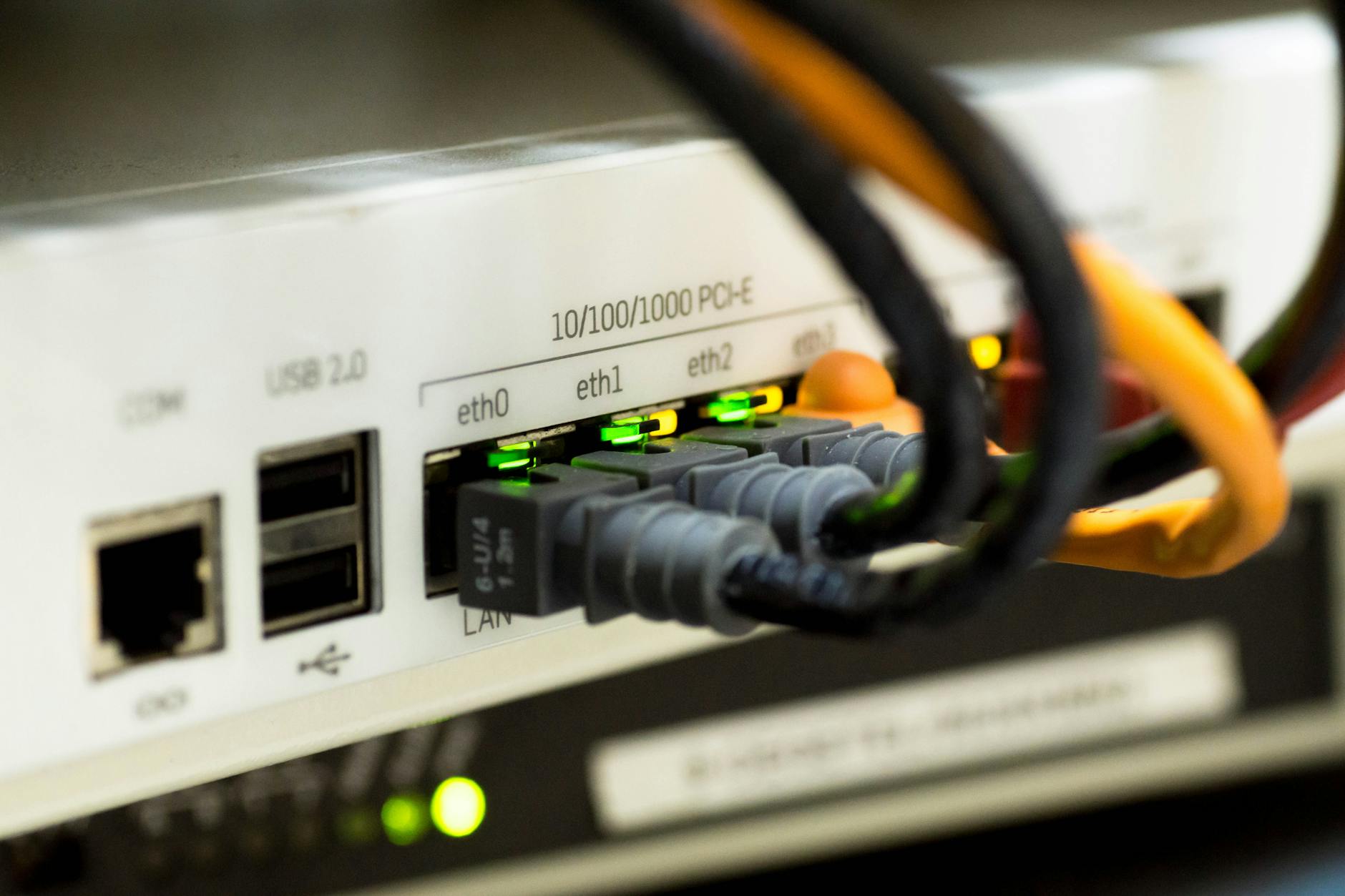
Photos from Pexels: cover by cnrdmroglu, ethernet close-up by Ann H, IT professional by panumas nikhomkhai, router by Pixabay.